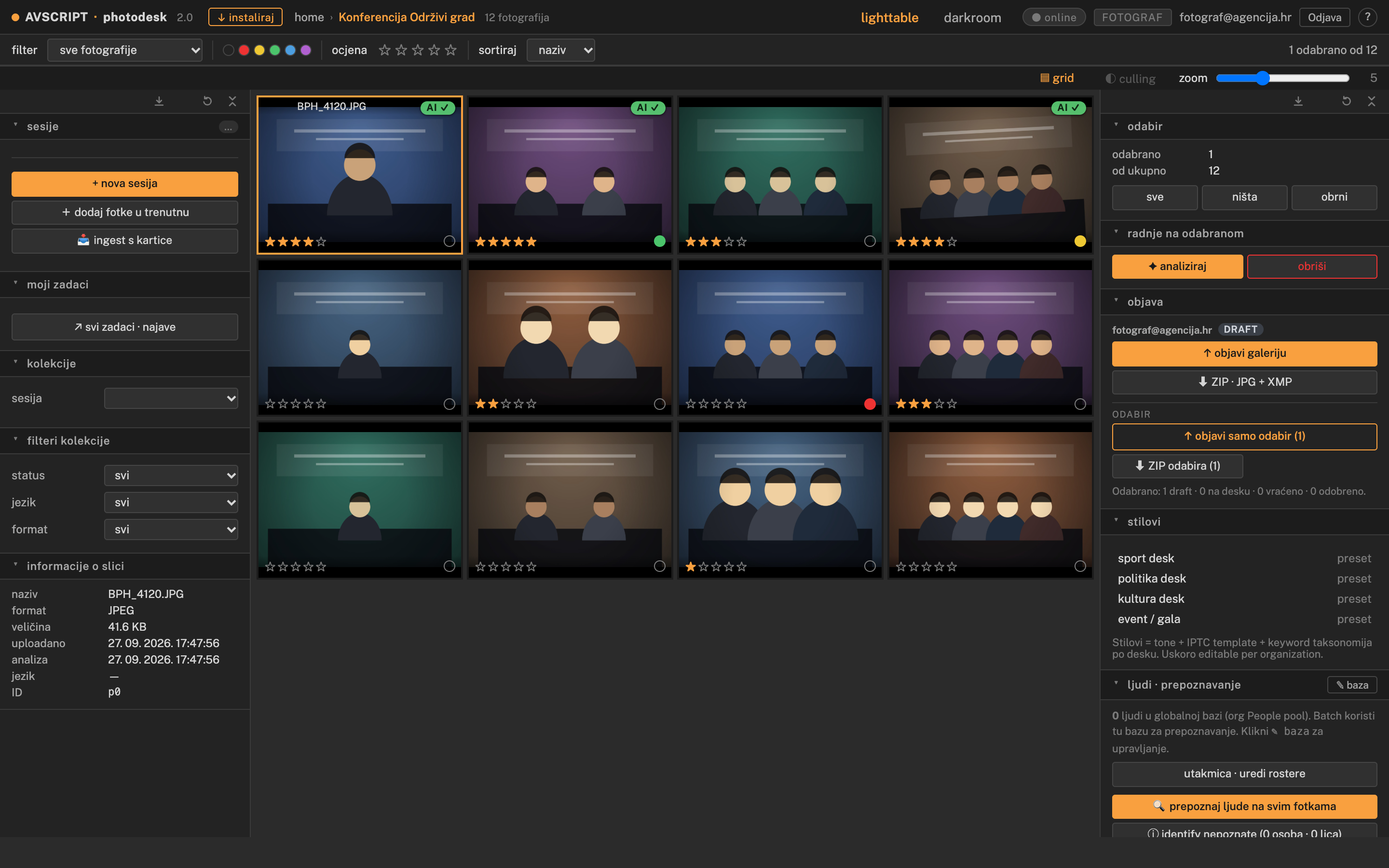
photo.avscript.tv is a photodesk for news and photo agencies: one place where photographers and the photo desk handle the whole life of a picture — from the camera card, through selection, captioning and editing, to delivery to the agency. It runs in the browser (Chrome, Edge, Brave) with nothing to install, and it keeps working offline.
This tutorial follows the order of a real assignment. Work through it top to bottom and tick things off as you go. Inside the app you can always get back here through the ? icon in the top right corner, next to Odjava (sign out).
Interface language: the app is in Croatian. Button and panel names are quoted here in Croatian, with the English meaning next to them.
Part 1
From assignment to gallery
A gallery straight from the assignment brief, getting photos in from a card or disk, and fast culling.
Step 01
Open a gallery from the assignment
Every assignment from the agency’s daily schedule (najava) becomes a gallery. The assignment text is copied into the gallery as the master caption — the AI later writes each photo’s caption from it.
Offline: without a connection, photos are kept in a working folder you choose on your own disk — never hidden inside the browser. When the connection comes back, the gallery syncs automatically.
Editor: an assignment for a photographer
Assignments are made by the editor (or a desk member whose admin enabled the najave checkbox) on the najave (assignments) page in the top menu.
Step 02
Bring in the photos
Three ways, same result. Uploads run in the background — you can keep clicking, selecting and working while photos go up.
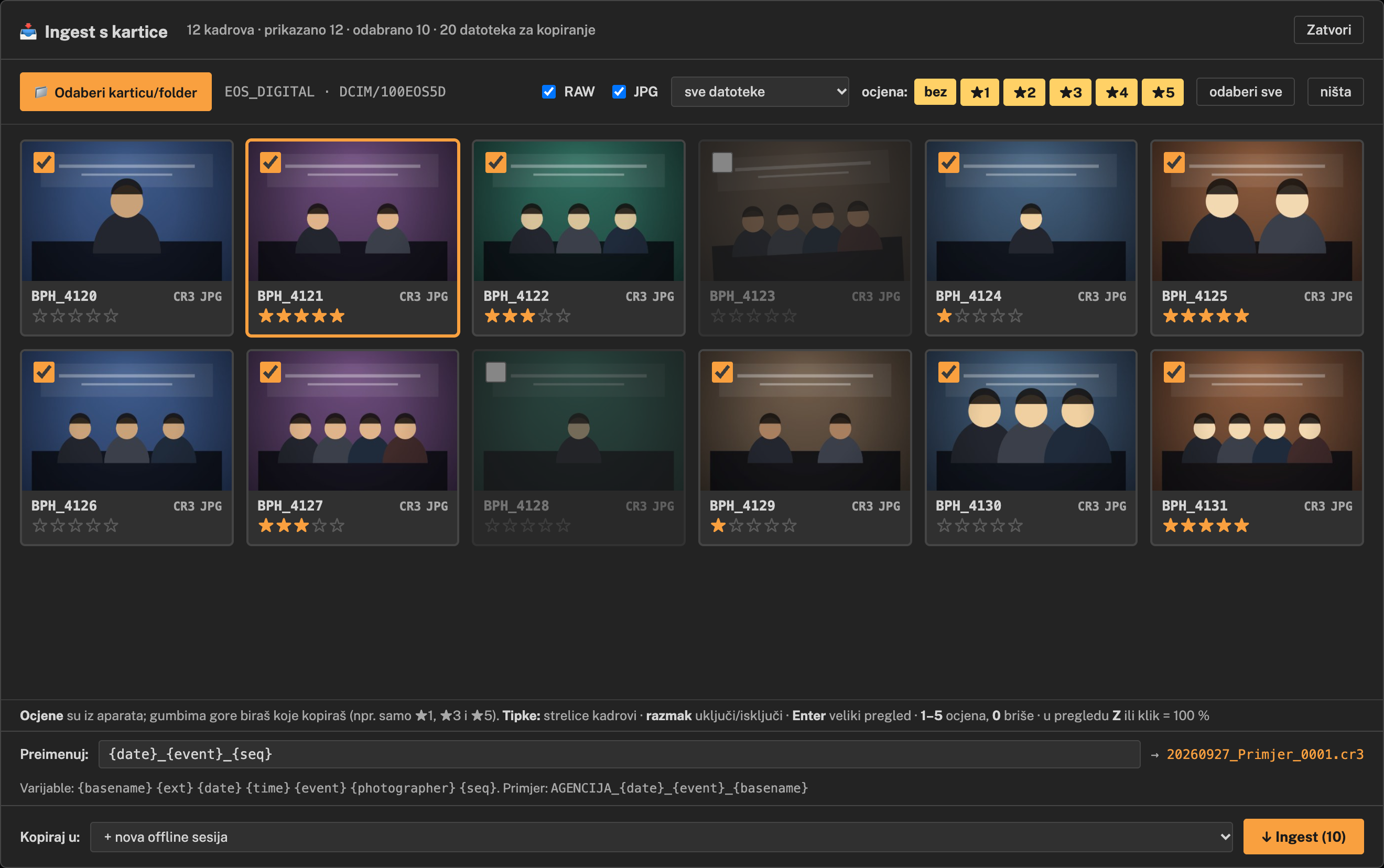
Ingest from a memory card
See the card before copying: thumbnails, in-camera star ratings and a large preview. Copy only what you want into your working folder, renamed by your pattern. The card is only read, and it all works offline.
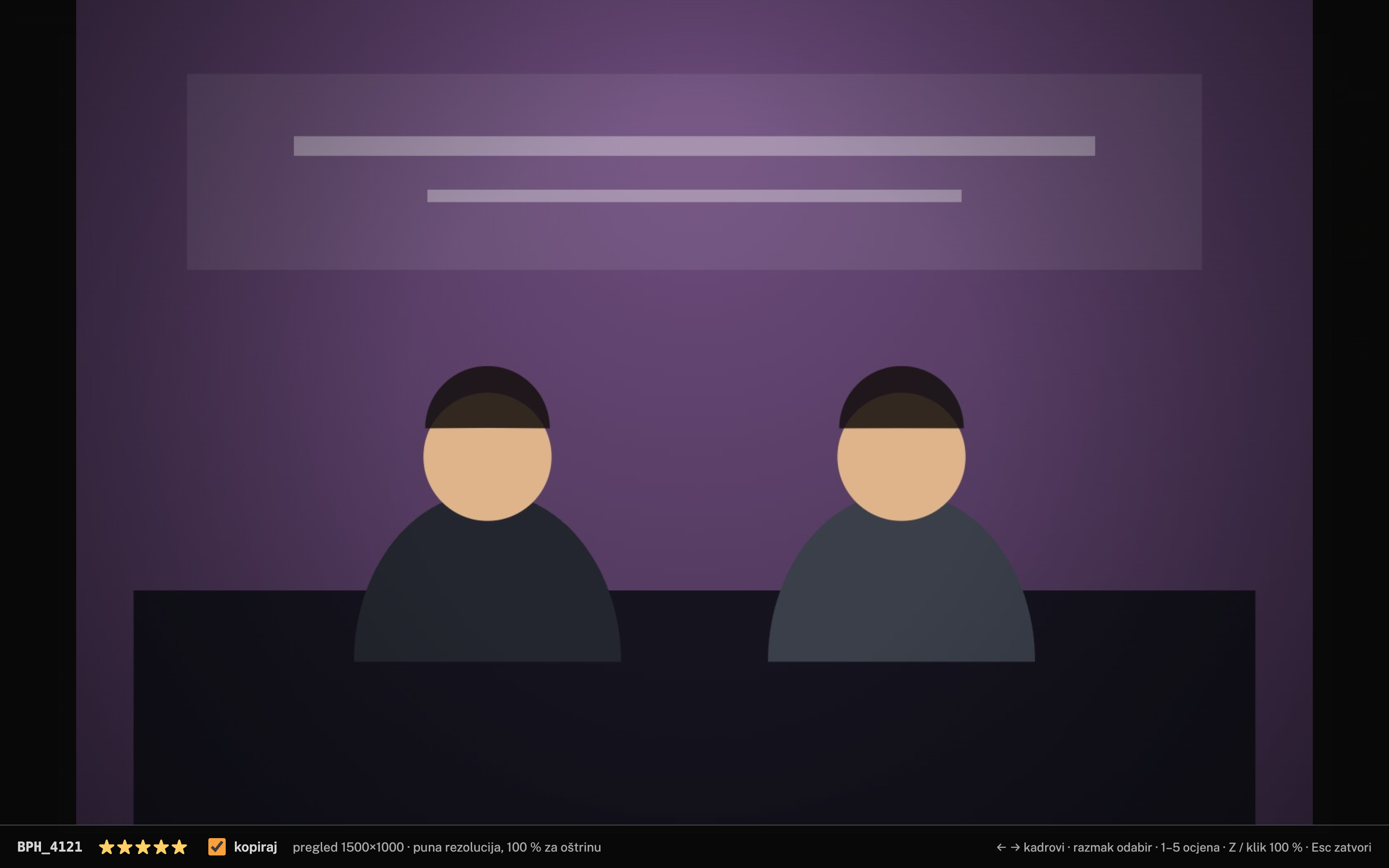
Large preview and sharpness
Locked (protected) photos: the browser cannot see the card’s protect flag. If you pick frames with the protect button in the field, switch that button to a rating (e.g. ★5) in the camera menu, then include only ★5 in ingest.
Step 03
Pick the best frames
Full-screen review with the same keyboard shortcuts as Photo Mechanic and Lightroom.
Key
Action
Space
open / close full-screen review
1 – 5
stars
6789
red, yellow, green, blue
0
clear rating and colour
wheel · Z
zoom to 100 % · back to fit
⌘A · Esc
select all · clear selection
Part 2
Captions: master caption, AI and faces
The AI looks at every photo and takes names, place and event from the assignment — so each caption is accurate for that exact frame.
Step 04
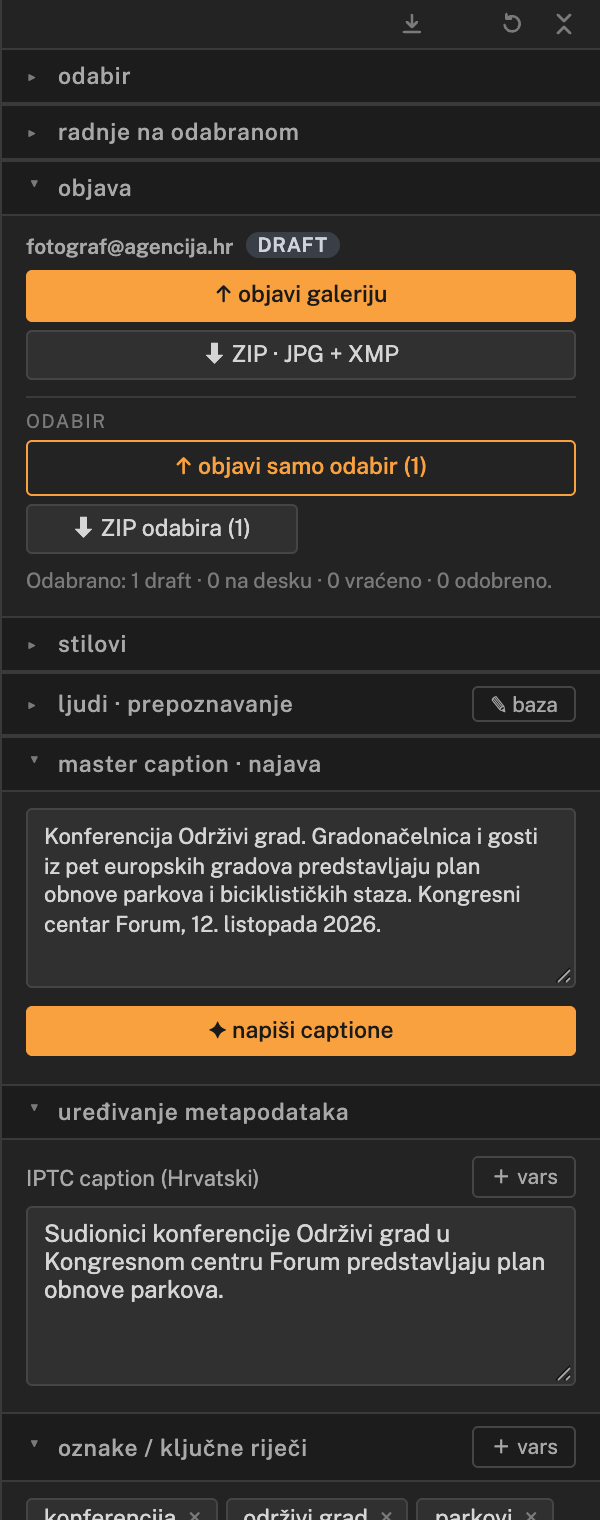
Master caption · assignment brief
A panel in the right column, directly above the metadata. If you opened the gallery from an assignment, the brief is already there. If it is empty, write what you shot: who, what, where and when.
No invention: the AI may only use what it sees in the photo and what the master caption says. It will not add names that are neither in the frame nor in the brief.
Step 05
Polish captions, keywords and IPTC
Every photo has its own caption and keywords. For many photos at once there is batch IPTC.
Step 06
Recognise people
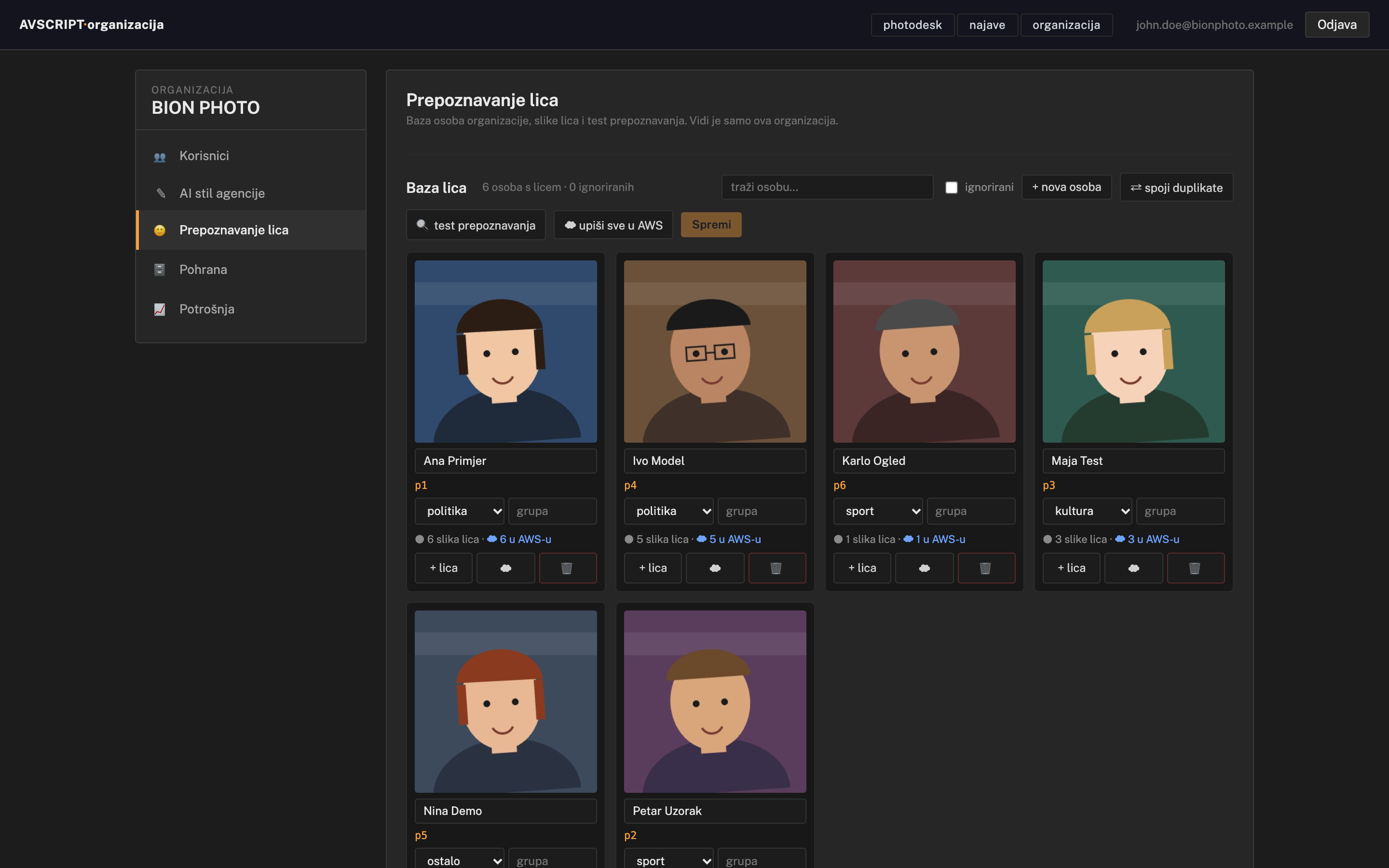
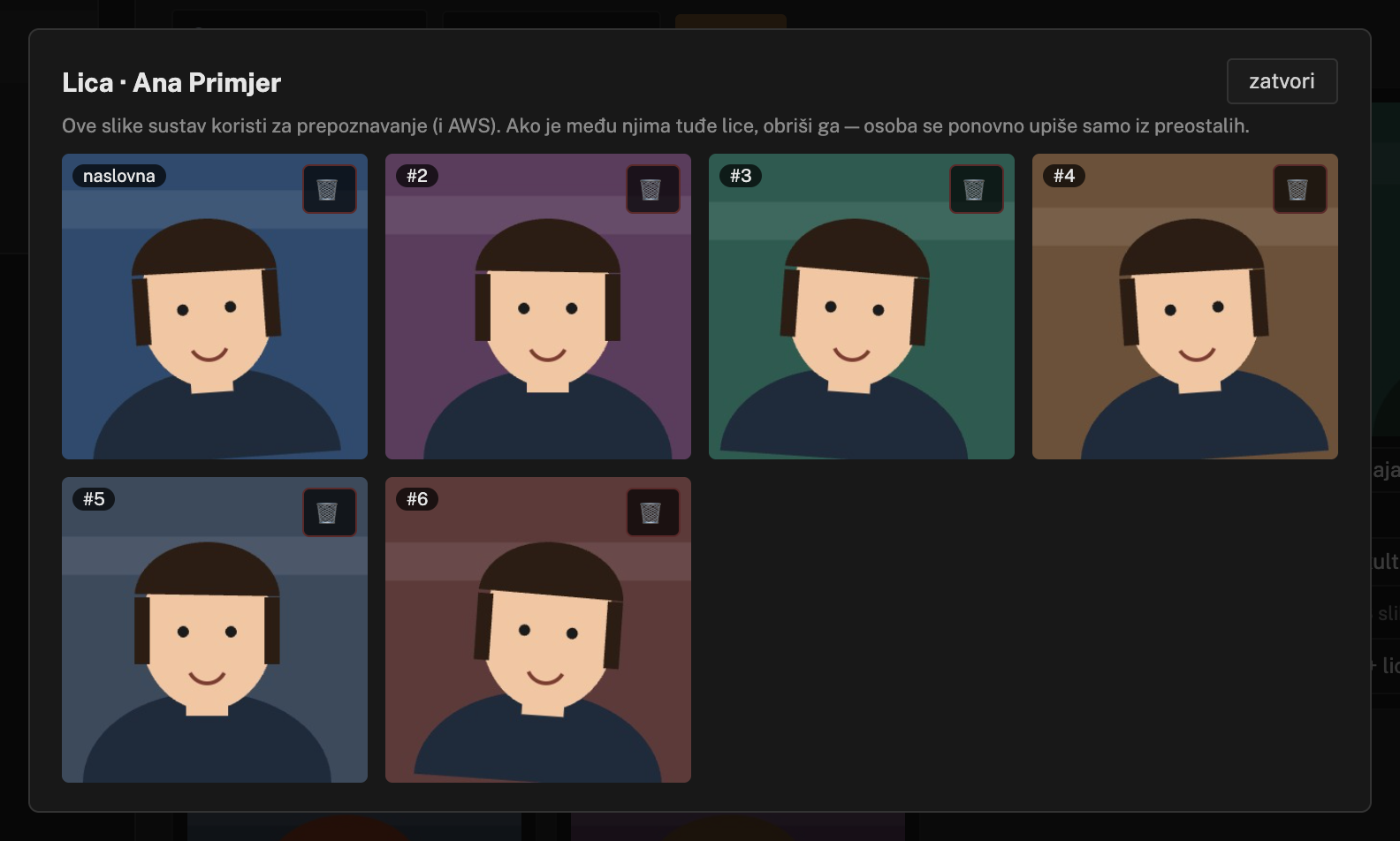
The system compares faces in your photos with your agency’s people base and suggests names. The base is shared across your whole agency; other agencies never see it. A name is suggested only when the system is confident (90 % or more), and you always confirm it.
Add a person and their faces
Someone you expect at a shoot, e.g. a new minister or player, can be added in advance under organizacija → Prepoznavanje lica (organisation → face recognition). The pictures show drawn characters, not real people.
Who can do what: photographers add people and faces. Deleting a face or a person, renaming and merging duplicates is for desk, editor or organisation admin. Do not add private individuals or minors — the rules are in the GDPR package.
Part 3
Editing in the darkroom
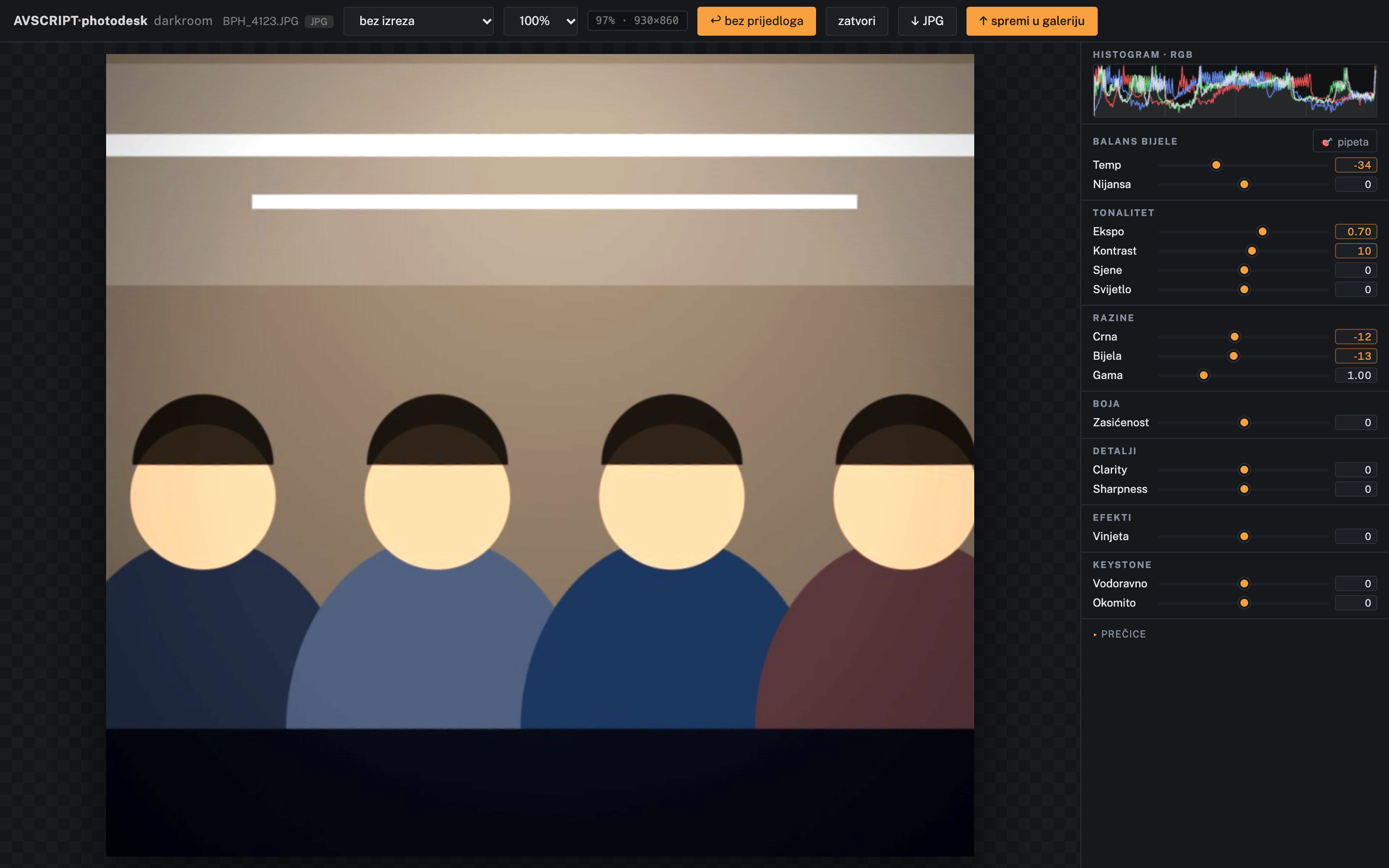
Classic photographic corrections, non-destructive, with an AI suggestion that learns your style. No generative AI changes to the image.
Step 07
Edit a photo — with the AI suggestion
Double-click a photo to open the darkroom. The original is never changed: slider settings are kept as a recipe and come back until you reset them.
Key
Darkroom action
C
crop
⌥ + ← / → · ctrl + ← / →
straighten ±1° · ±0.1°
B
before / after
L
loupe
⌘C · ⌘V
copy / paste sliders to another photo
R · ⇧R
reset sliders · reset everything
F / ⌘0 · Esc
fit · close
Step 08
Develop RAW to JPG
RAW files (CR2, CR3, NEF, ARW, RAF, DNG…) are developed in the browser, on the graphics card. The editor is the same as for JPG.
Part 4
Delivery
Publishing to the desk and a ZIP for the agency — JPGs at the highest quality, with the caption and credit line inside.
Step 09
Publish to the desk
The photographer publishes; the desk approves or sends back with a reason.
Step 10
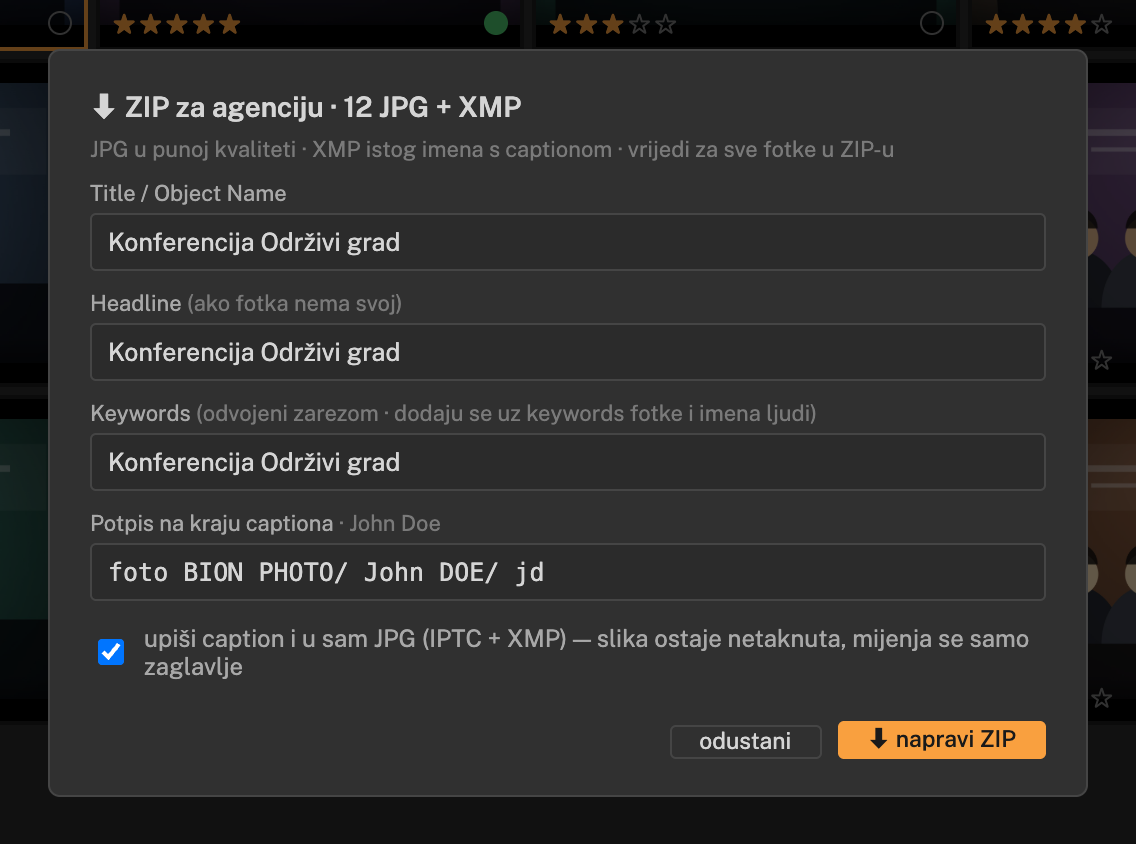
ZIP for the agency — JPG + XMP
The whole gallery or a selection in one click. Next to every JPG goes an XMP sidecar with the same name (BPH_4120.JPG + BPH_4120.xmp), which Photo Mechanic, FotoWare and Lightroom read.
Highest quality: the image data in the JPG stays byte-for-byte identical to the original — embedding the caption only changes the metadata header. An edited photo is rendered from the original at full resolution and 100 % quality. The ZIP adds no compression.
Step 11
Original retention
Originals do not stay on the server forever. The organisation admin sets the period. Only the image is deleted — caption, keywords and time stay on record.
Admin: the period is set in organizacija → Pohrana → Rok čuvanja originala (0 = never delete). It also shows how many photos are due for deletion now and within 7 days.
Part 5
Organisation
For the organisation admin: members and roles, the agency AI style, face base, storage and usage against the quota.
Step 12
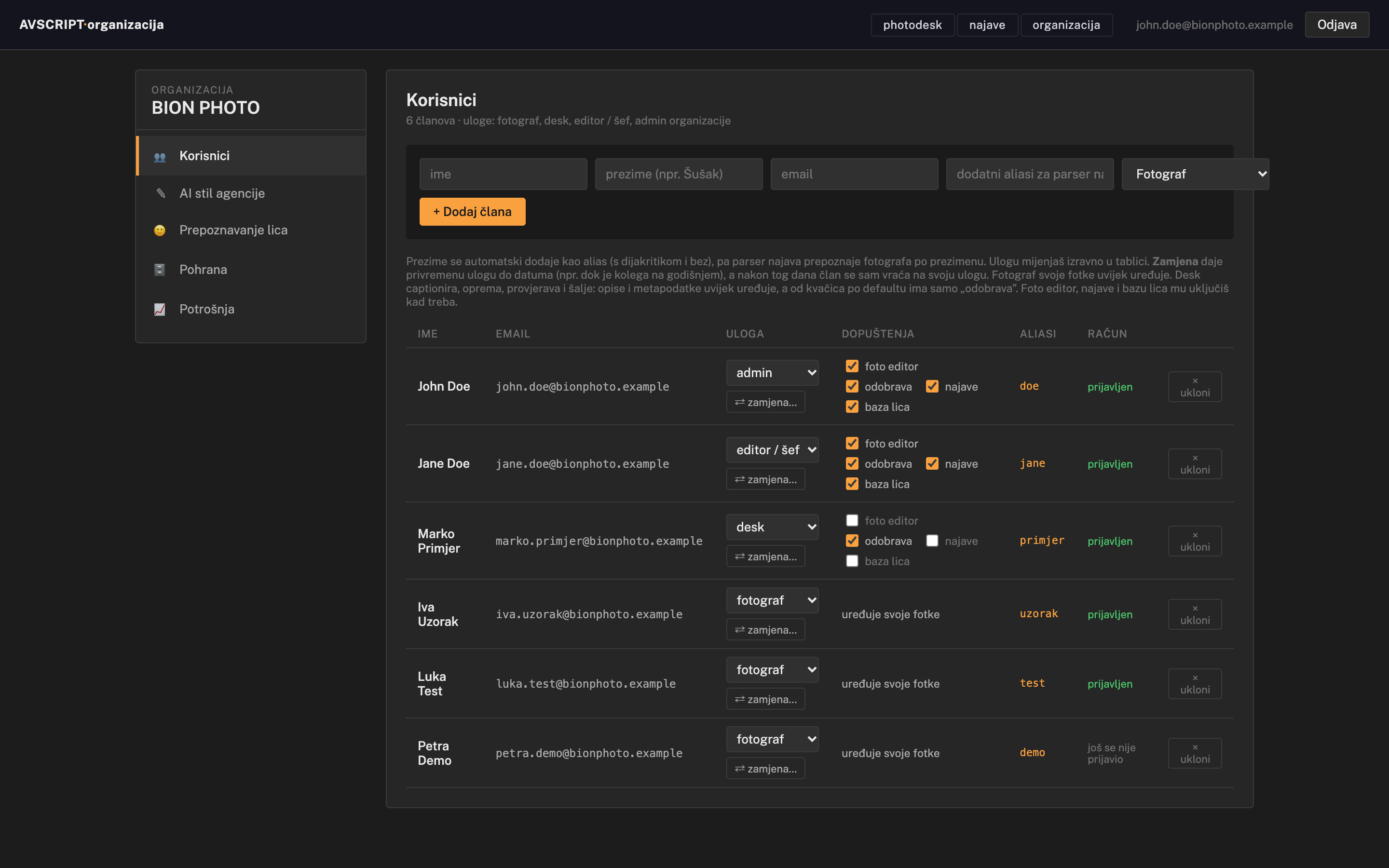
Members and roles
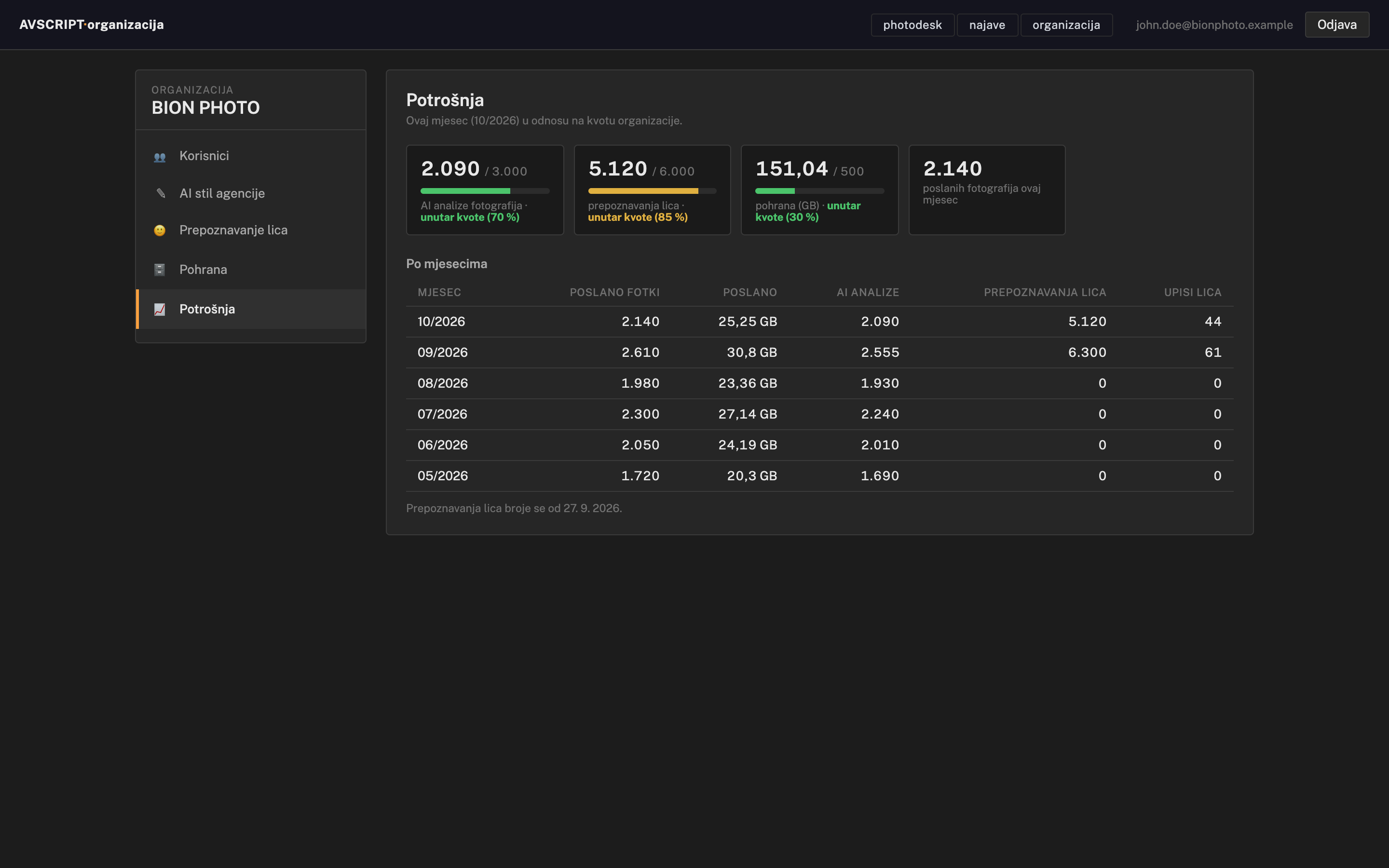
The organisation console is at photo.avscript.tv/admin/org (top menu: organizacija). On the left are Users, Agency AI style, Face recognition, Storage and Usage. You only ever see your own organisation. A person can be a member of one organisation only.
Step 13
Agency AI style
How the AI writes for your agency: captions, keywords and editing. The instructions apply to all your photographers and nobody outside the organisation sees them.
Step 14
Storage and usage
How many photos and how much space the organisation uses, and whether it is within its monthly quota.
Arrange the interface your way
Panels in the left and right columns can be arranged however you like. Click a panel title to open or close it; drag the title to move the panel. The icons at the top of each column:
Icon
Action
⌃⌄
collapse or expand all panels
↓
save the current layout as yours
★
restore your saved layout (orange when active)
↺
restore the default layout — with confirmation
Your layout follows you: it is saved to your account, so it is the same on every computer you sign in from.
Security and privacy
Every organisation is closed: photos, assignments, the face base and statistics are visible only to its members.
Organisations are never connected: a person can be a member of one organisation only, and an assignment can only go to a member.
Photos open only through links that expire within two days, and face images only for signed-in members.
Originals are never compressed: not in storage, not on delivery, not in the ZIP.
Signing out clears everything the app remembered on the computer, so shared newsroom computers are safe.